10 Best Client Portal Examples for 2026 That Clients Use
TL;DR
A client portal only works if it becomes the place where clients take action, not just another login to ignore. This article compares 10 client portal examples across SaaS onboarding, agency work, support, document collaboration, and custom portals. Each entry covers pricing, key features, real user feedback, and honest tradeoffs so you can match the right portal pattern to your workflow.
What Is a Client Portal?
A client portal is a secure, branded online space where clients do things: complete onboarding tasks, upload documents, view milestones, approve deliverables, sign agreements, submit requests, pay invoices, or track support tickets. HubSpot frames customer portals around ticket visibility and CRM data. OnRamp defines onboarding portals around task completion and milestones where clients track progress and communicate with the success team.
The distinction matters because “client portal” means different things depending on the job. An implementation team needs phase gates and go-live dependencies. An agency needs approval workflows and final asset delivery. An accounting firm needs secure document exchange. A support team needs ticket tracking and knowledge base access.
A good client portal is not just a login page. It is the client-facing action layer of your delivery process. If you are evaluating tools, the first question is not “which portal software looks nice?” It is “what does my client need to do here?”
Explore GoLiveFlow’s platform to see what a guided implementation portal looks like in practice.
At-a-Glance Comparison Table
| Tool | Best For | Portal Pattern | Starting Price | Standout Feature | Main Tradeoff |
|---|---|---|---|---|---|
| GoLiveFlow | SaaS implementation and onboarding | Guided implementation portal | $19/seat/month | Engagement scoring + AI risk detection + e-sign approvals | Newer brand; Salesforce/Outlook coming soon |
| GUIDEcx | Enterprise client onboarding | Client onboarding portal | ~$4,700/year (4+ licenses) | Login-less access via secure links | No free trial; ~45-day setup |
| Rocketlane | PSA + customer onboarding | Branded onboarding + PSA | $19/user/month (5-user min) | Magic link login + actionable emails + CSAT | 5-seat minimum; AI add-on extra |
| Dock | Sales-to-onboarding handoff | Deal room / onboarding hub | Free; Standard $350/month | External collaborators always free | Custom domain gated to Enterprise |
| HubSpot Service Hub | CRM-native support | Support ticket portal | ~$90/seat/month (Professional) | Deep CRM integration + knowledge base | Support-focused, not implementation |
| SuiteDash | Agency all-in-one | White-label business portal | $19/month | CRM + projects + billing + e-sign, unlimited users | Steep learning curve |
| Clinked | Secure document collaboration | Document collaboration portal | $194/month (100 users) | Audit-style file sharing + white-label | Limited advanced reporting |
| Softr | Custom no-code portal | No-code portal builder | Free; Basic $49/month | Builds on Airtable/Sheets/HubSpot data | Not a full CRM or PM system |
| HoneyBook | Creative freelancers | Proposal-to-payment portal | $36/month | Proposals + contracts + invoices + scheduling | Payment processing fees; portal fatigue risk |
| Moxo | Process orchestration | Multi-party workflow portal | Free; Business $99/month | Workflow automation + approvals + audit trails | Overkill for simple portal needs |
How to Choose the Right Client Portal
Before comparing features, answer five questions. These form what you might call a Portal Adoption Score, and they predict whether clients will actually log in or drift back to email.
1. Action clarity. When a client opens the portal, do they immediately see what to do next? The best portals show a next task, a due date, an owner, and a “waiting on you” indicator. Weak portals show a dashboard full of widgets with no clear starting point.
2. Access friction. Can the client act without remembering another password? Magic links, secure links, and actionable email notifications reduce friction dramatically. Practitioners on Reddit’s r/CustomerSuccess report that tools letting customers update task status from email get far more participation than portals requiring a separate login.
3. Internal/external separation. Can your team keep risk flags, internal notes, and operational complexity hidden while showing clients a clean view? OnRamp argues that internal PM tools and client portals should never be the same interface, because internal back-end complexity creates friction for clients. This is one of the most overlooked criteria. A deeper comparison of implementation software vs. project management tools explains why these are fundamentally different categories.
4. Context preservation. Are messages, files, approvals, and decisions tied to the specific project or task they belong to? Practitioners on r/marketingagency are blunt: a portal becomes another inbox unless every item has an owner, due date, version history, and visible “waiting on client” state.
5. Risk visibility. Does the portal tell the internal team when the client is drifting? If no one logs in for 48 hours after kickoff, if a critical approval is overdue, if budget burn is ahead of delivery progress, the right portal surfaces that signal before it becomes a crisis. Learn more about how to detect risk early using AI in implementation projects.
Score each tool 0 to 2 on these five dimensions. Tools scoring 8 to 10 will likely get adopted. Tools scoring below 5 risk becoming shelfware.
10 Client Portal Examples
1. GoLiveFlow
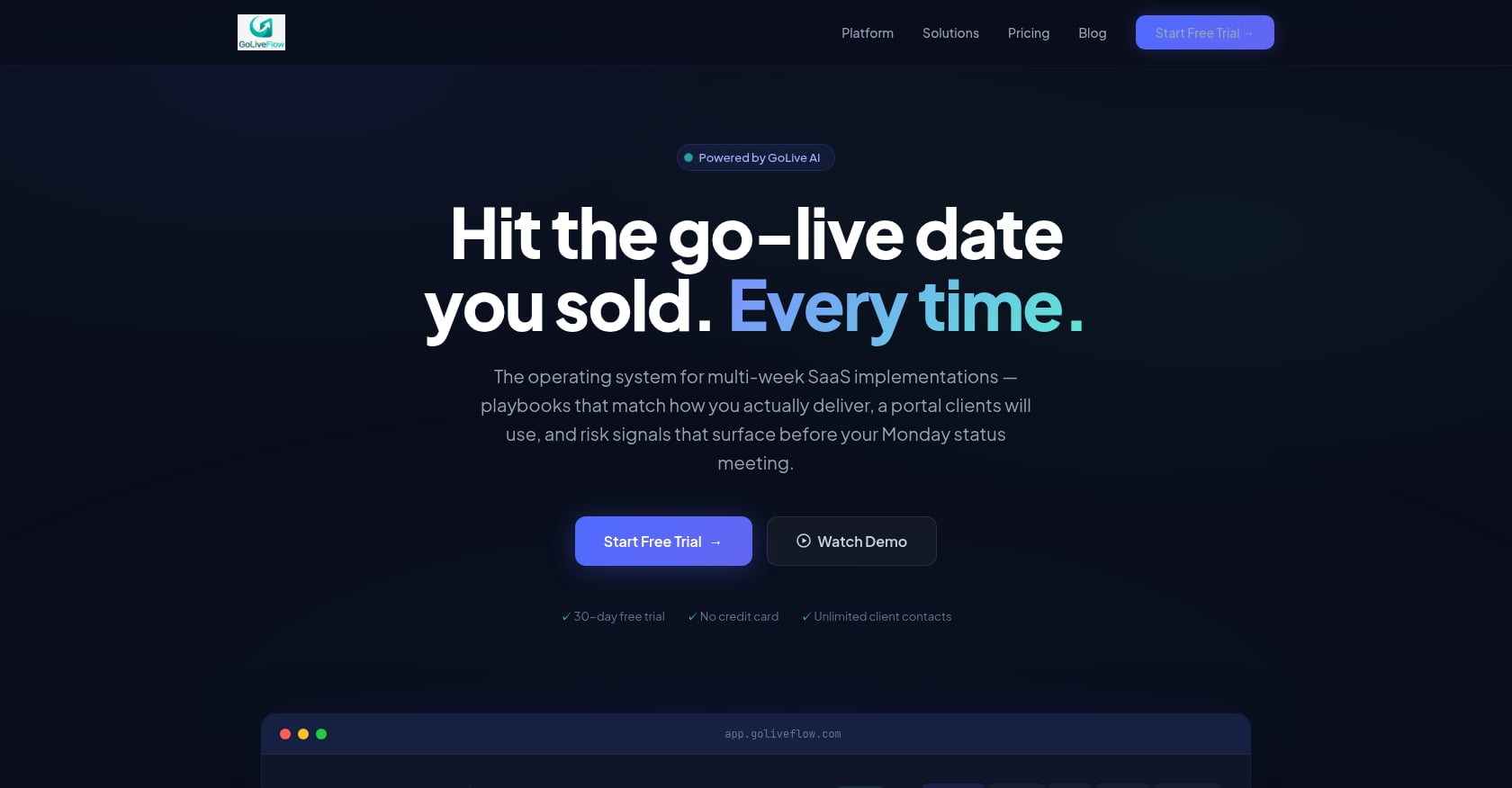
Best for: SaaS implementation teams, customer onboarding teams, professional services teams, and PMOs that need to coordinate clients from signed deal to go-live.
Example workflow: A new SaaS customer logs into a branded portal after kickoff and sees a step-by-step implementation wizard. The client completes assigned tasks, submits documents, signs approvals with built-in e-signatures, tracks milestones, and understands exactly what is blocking go-live. Internally, the implementation team sees engagement scores, overdue dependencies, AI risk alerts, budget burn, capacity conflicts, and portfolio time-to-value analytics.
Pricing:
- Starter: $19/month per seat (up to 3 seats, 5 active projects)
- Professional: $49/month per seat (25 active projects, full interactive portal, e-signatures, automation rules, analytics, API, Zapier)
- Enterprise: $99/month per seat (unlimited projects, SSO/SAML, AI Copilot, priority support, dedicated onboarding)
- All plans include unlimited client contacts. 30-day free trial, no credit card required.
Key features:
- Branded client portal with guided step-by-step wizard
- Engagement scoring that flags clients going dark
- AI risk detection with coaching prompts
- E-signature approvals with audit trail
- Automation rules engine and SLA tracking
- Portfolio analytics for time-to-value, bottlenecks, and task velocity
- Resource management and capacity planning
- Budget burn vs. progress tracking
- Gantt, timeline, board, and list views with baselines
- Integrations: HubSpot, Zapier, Google Calendar, Slack, SendGrid, Stripe, API, webhooks
Tradeoffs:
- Salesforce and Outlook integrations are listed as coming soon, so teams deeply standardized on those tools should confirm roadmap timing.
- SOC 2 certification is in progress rather than fully complete.
- Newer brand with limited third-party review footprint compared to established competitors.
- Purpose-built for implementation and onboarding, not a generic freelancer billing portal.
Choose it if your core problem is getting SaaS customers from signed deal to go-live on time, with full visibility into engagement, risk, and time-to-value. Skip it if you need a support ticketing portal or a proposal-to-payment system for freelancers.
Compare GoLiveFlow plans and pricing to see which tier fits your team.
2. GUIDEcx
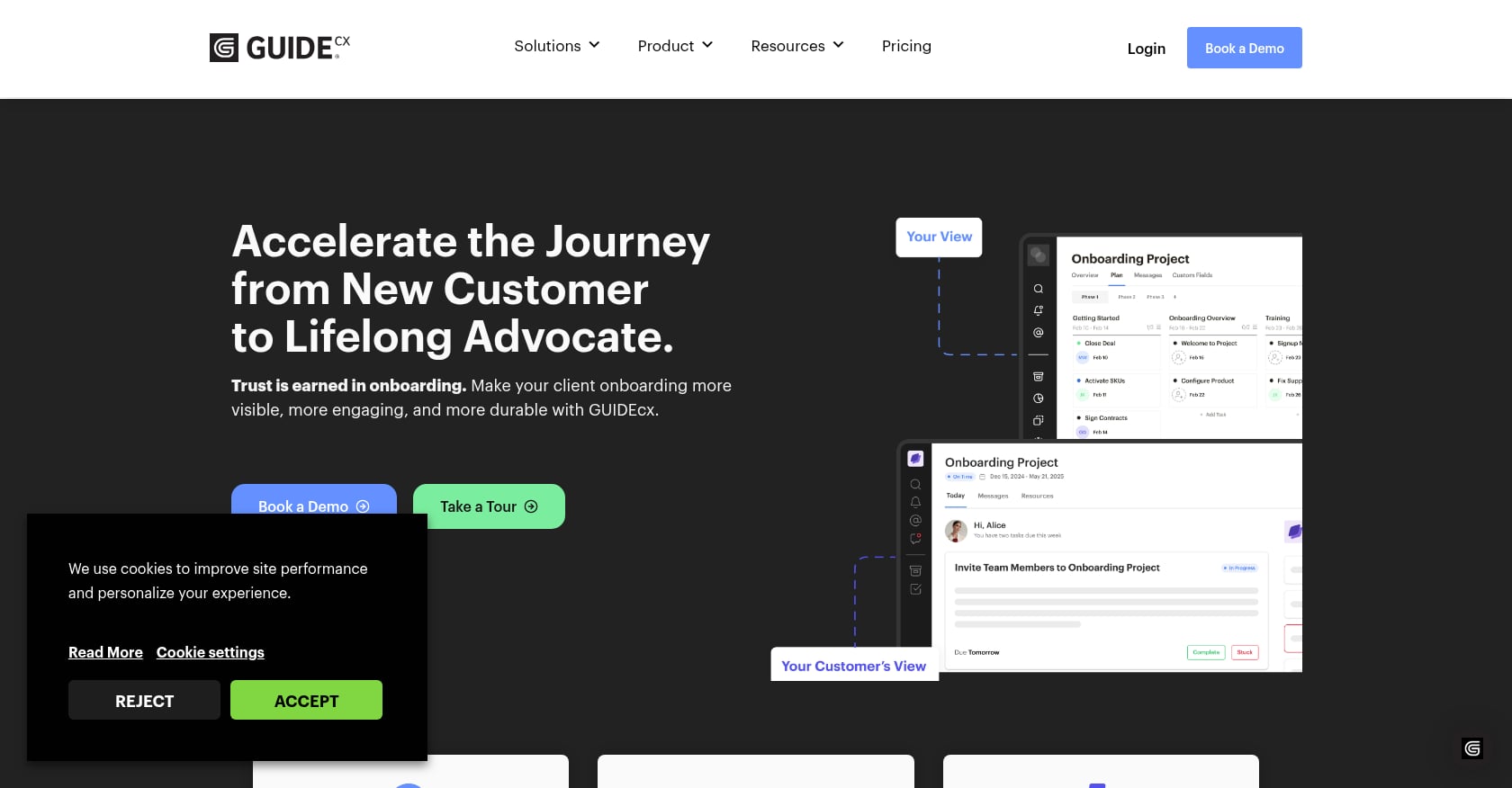
Best for: Established onboarding teams needing customer-facing project transparency with login-less access and executive reporting.
Example workflow: A customer receives a secure link after kickoff. They see their assigned tasks, phase milestones, and a forecasted completion date without creating an account. The internal team tracks automation rules, threaded messages, and scheduled reports.
Pricing: GUIDEcx’s official pricing page asks buyers to speak to sales. G2 pricing data lists Starter at approximately $4,700/year for 4+ licenses, with Premium, Advanced, and Professional as contact-sales tiers. All packages include unlimited projects and unlimited customers.
Key features:
- Customer onboarding portal with white-label branding
- Login-less access via secure links
- Task and email automation
- Intelligent end-date forecasting
- Gantt, list, and board views
- Report Navigator with scheduled reports
- “View as customer” mode
- Approval flows
What users say: G2 shows GUIDEcx at 4.6/5 from 461 reviews, with praise for streamlined onboarding and team collaboration. Common concerns include slow loading, occasional bugs, and a learning curve.
Tradeoffs:
- No current free trial.
- Setup averages around 45 days depending on complexity.
- Pricing is not fully transparent without a sales conversation.
- Better suited for teams with budget and process maturity than small teams testing their first portal.
Choose it if you run a mature onboarding operation and can support a formal rollout. Skip it if you need a self-serve tool you can adopt this week.
3. Rocketlane
Best for: Mid-market SaaS and professional services teams wanting PSA capabilities (time tracking, resource management, financials) alongside a customer onboarding portal.
Example workflow: A client logs in via magic link, sees their onboarding tasks, completes them, and provides approvals. The internal team tracks time, manages budgets, and measures CSAT at milestones, all in one platform.
Pricing: Rocketlane lists Essential at $19/user/month billed annually with a 5-user minimum, Standard at $49/user/month, and Enterprise at $99/user/month. AI Fills is an add-on at $29/user/month. Implementation packages are charged extra based on scope.
Key features:
- Branded customer portal with magic link login
- Customer approvals and collaboration
- Actionable emails (clients can update tasks without logging in)
- Built-in CSAT at milestones
- Templates for projects, documents, forms, and emails
- Time tracking and timesheet approvals
- Higher tiers add budgeting, rate cards, revenue recognition, Salesforce, and SAML
What users say: G2 shows Rocketlane at 4.7/5 from 838+ reviews. One reviewer praised how it centralized onboarding that was previously scattered across emails and spreadsheets. Another noted a roughly 15% reduction in onboarding times but wished for better Outlook/Teams integrations.
Tradeoffs:
- The 5-user minimum makes the real entry cost $95/month, not $19.
- Annual billing only on listed prices.
- More PSA-like than a simple portal, which may overwhelm small teams.
Choose it if the portal is part of a broader services-delivery operating system. Skip it if you only need a lightweight client-facing checklist.
4. Dock
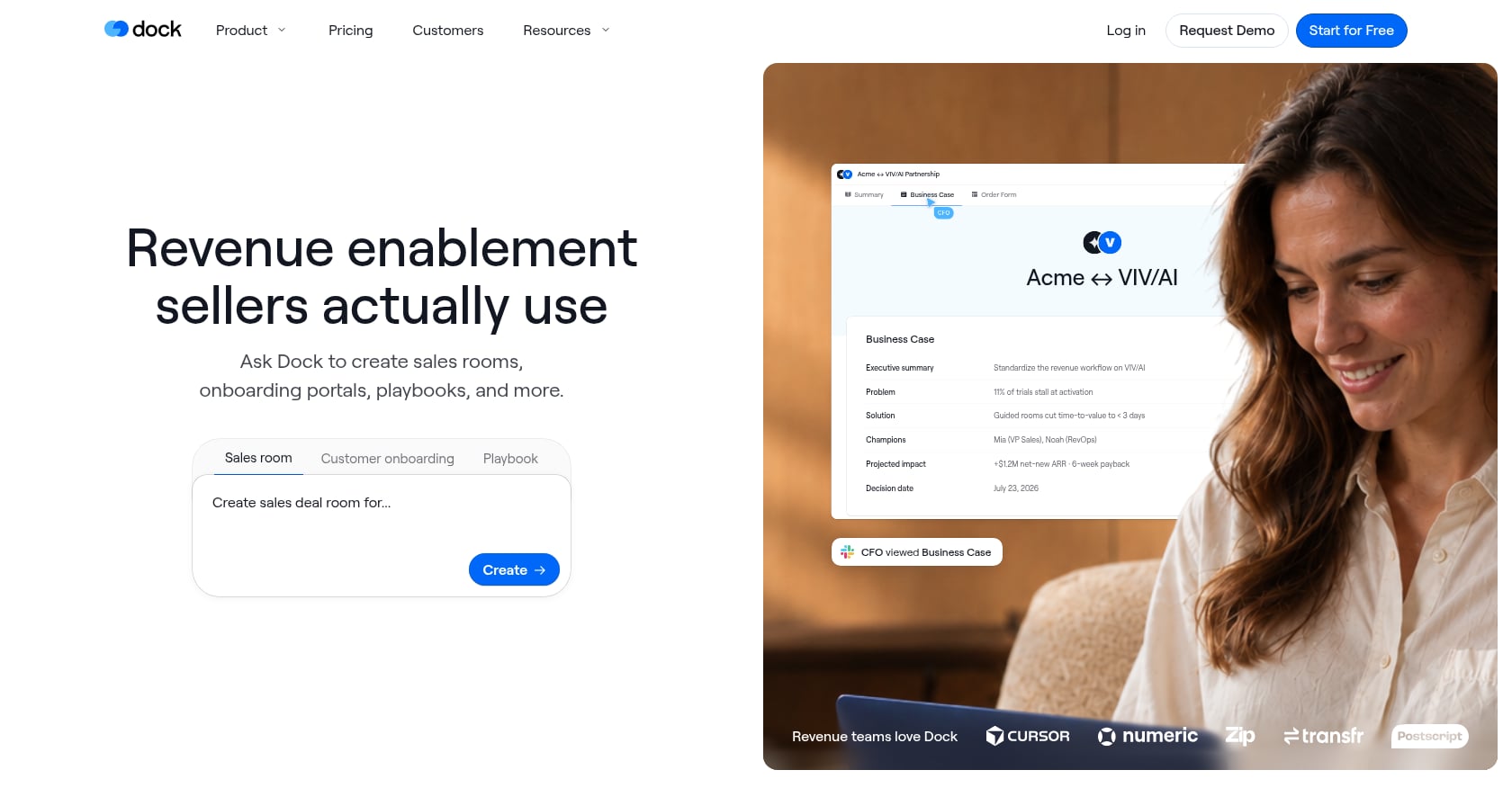
Best for: Revenue teams that need digital sales rooms and customer onboarding workspaces with a smooth handoff from sales to delivery.
Example workflow: A prospect accesses a deal room during the sales process, then transitions into an onboarding workspace after close. Content, mutual action plans, and learning resources live in one branded hub. External collaborators never pay.
Pricing: Dock lists a Free plan, Standard at $350/month, Premium at $1,000/month billed annually, and Enterprise at custom pricing. External collaborators (prospects, clients, partners) always have free access.
Key features:
- Sales and onboarding workspaces
- Content management and learning playbooks
- Order forms / CPQ
- AI usage included by plan
- Salesforce and HubSpot integrations on paid plans
- Custom branding
What users say: G2 shows Dock at 4.7/5 from 436+ reviews. Users praise fast workspace creation and centralized collaboration. Recurring concerns include limited customization and integration gaps.
Tradeoffs:
- Strong workspace tool, but not a full implementation PSA.
- Standard at $350/month may be steep for very small teams.
- Custom domain, API, SSO, and enterprise controls are gated to higher tiers.
Choose it if the client experience starts during the sales process and needs a seamless handoff into onboarding. Skip it if your core problem is delivery capacity, budget burn, or multi-project implementation risk.
5. HubSpot Service Hub
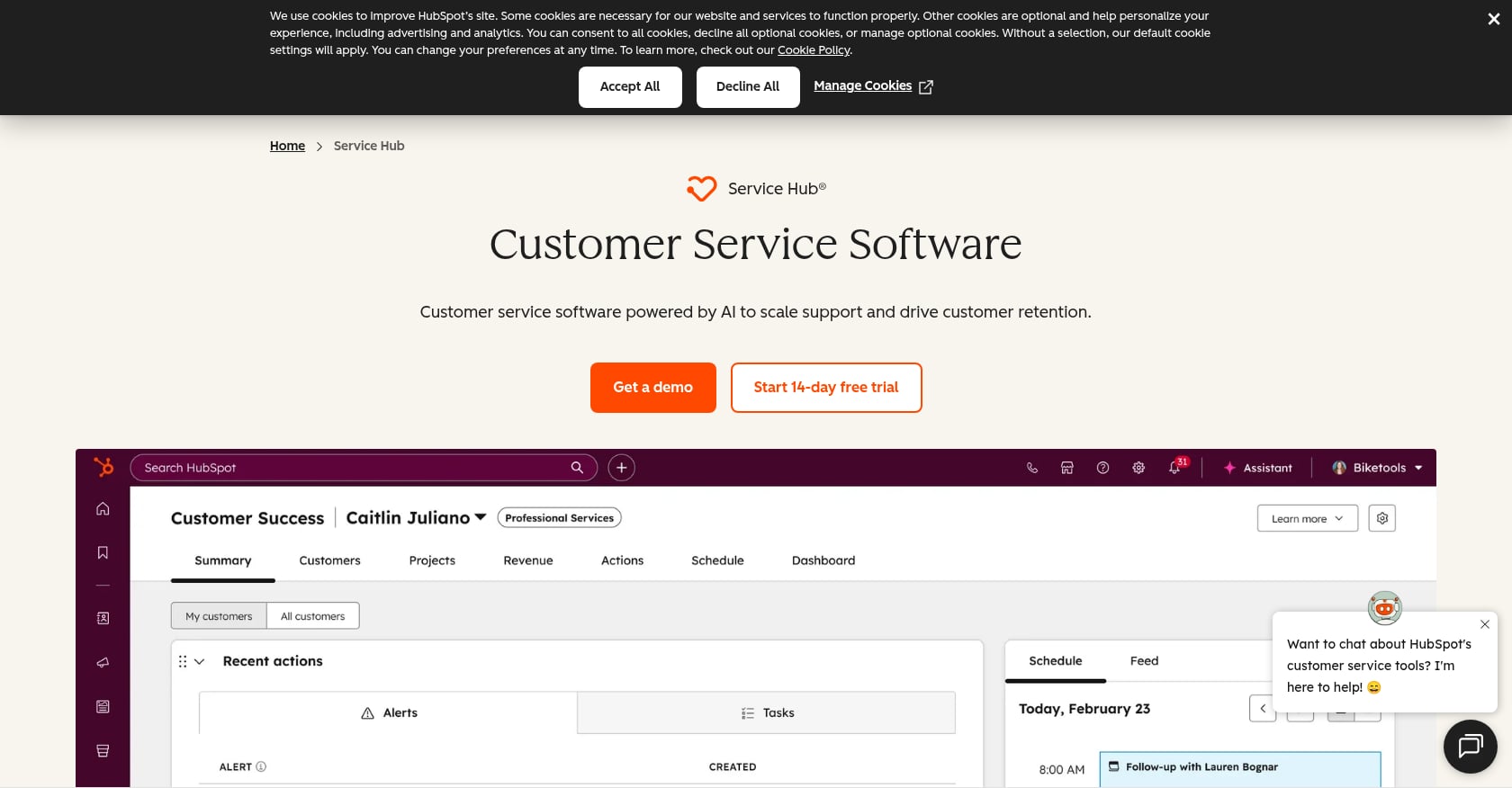
Best for: Companies already running HubSpot CRM that want a customer portal for support tickets, knowledge base access, and CRM-native service workflows.
Example workflow: A customer logs into the portal, views open support tickets, searches the knowledge base, and submits new requests. The internal team manages tickets, SLAs, and customer feedback inside HubSpot’s help desk workspace.
Pricing: HubSpot’s Service Hub Professional starts at approximately $90/seat/month billed annually with a $1,500 setup fee. The customer portal is a Professional-tier feature.
Key features:
- Customer portal with ticket history and status
- Knowledge base
- Help desk and SLA management
- CRM-native customer activity
- Breeze / Customer Agent AI capabilities
- Omnichannel support (depending on plan)
What users say: HubSpot Service Hub holds a 4.4/5 G2 rating with 2,000+ reviews. Reddit discussions frequently mention pricing complexity, especially for teams that only need a simple portal rather than the full CRM suite.
Tradeoffs:
- Excellent for support, not built for implementation project management.
- Portal value is highest if the company already runs HubSpot CRM.
- Pricing can be hard to justify if the buyer only needs a client portal and not the full service suite.
Choose it if ticket visibility and CRM-native service workflows are the priority. Skip it if you need go-live project management, engagement scoring, or implementation risk detection.
Understanding why onboarding tools differ from PM software can help clarify when a support portal is enough and when you need something more purpose-built.
6. SuiteDash
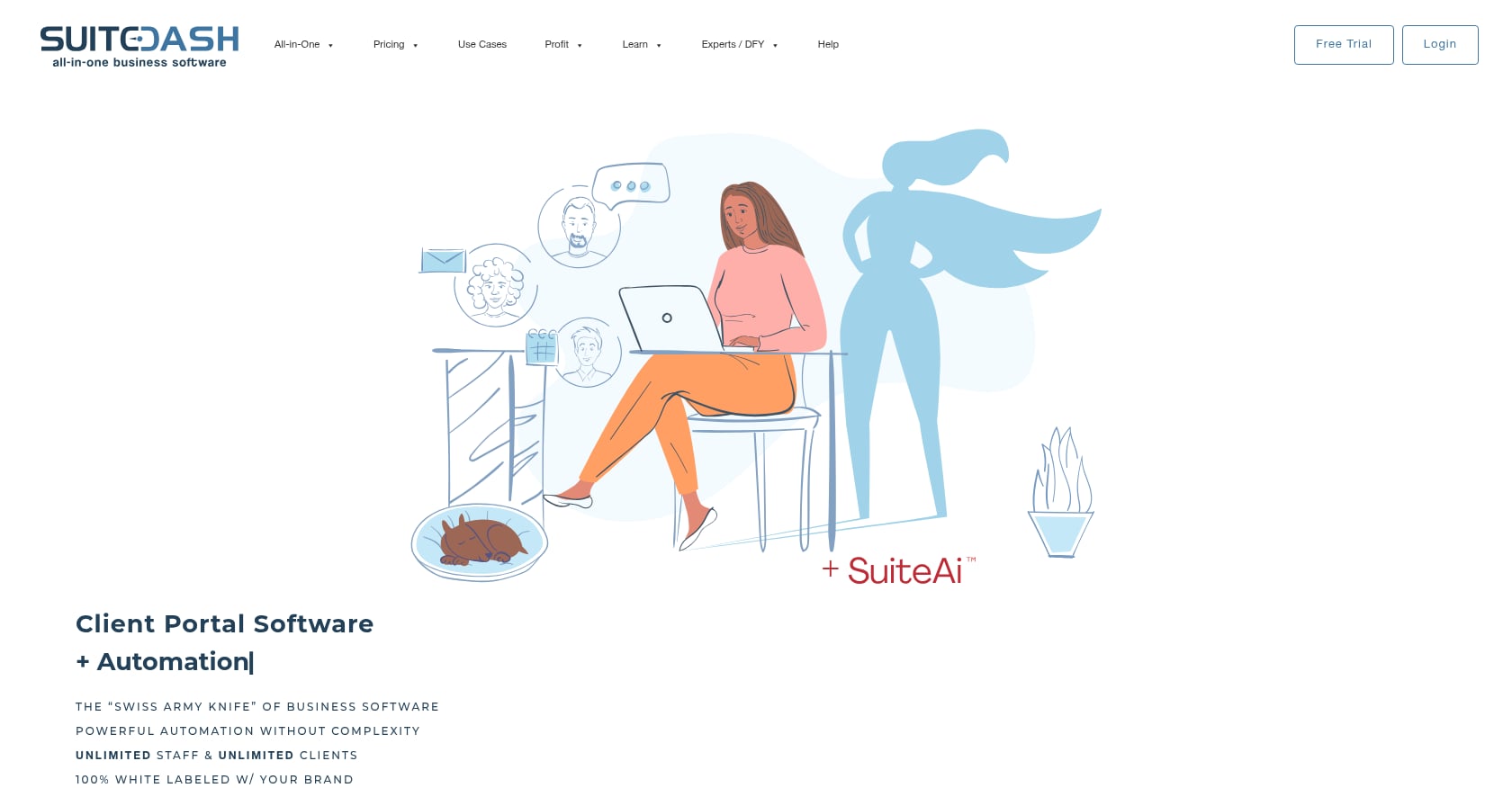
Best for: Agencies, consultants, and small to midsize service businesses that want a white-label portal combining CRM, projects, invoices, proposals, file sharing, e-signatures, and client communication.
Example workflow: A client logs into a branded portal, views their project status, downloads deliverables, pays an invoice, and signs a contract. The agency manages everything from CRM to billing in one platform.
Pricing: G2 lists SuiteDash at $19/month (Start), $49/month (Thrive), and $99/month (Pinnacle), with a free trial available. All plans include unlimited users.
Key features:
- White-label client portal
- CRM, project management, and billing
- Proposals, contracts, and e-signatures
- File sharing and automations
- LMS and community features
- Integrations: Google Workspace, QuickBooks, Stripe, Zapier
What users say: G2 shows SuiteDash at 4.8/5 from 617+ reviews. Users praise the all-in-one consolidation but consistently note a steep learning curve. One reviewer said the white-label portal helped create a professional branded experience, while warning that the interface is not mastered in a day.
Tradeoffs:
- Setup takes meaningful time.
- Not purpose-built for SaaS implementation risk management.
- Multi-currency support gaps flagged by some reviewers.
Choose it if you want one branded home for all client work at a low monthly cost. Skip it if you need specialized onboarding analytics, engagement scoring, or time-to-value reporting.
7. Clinked
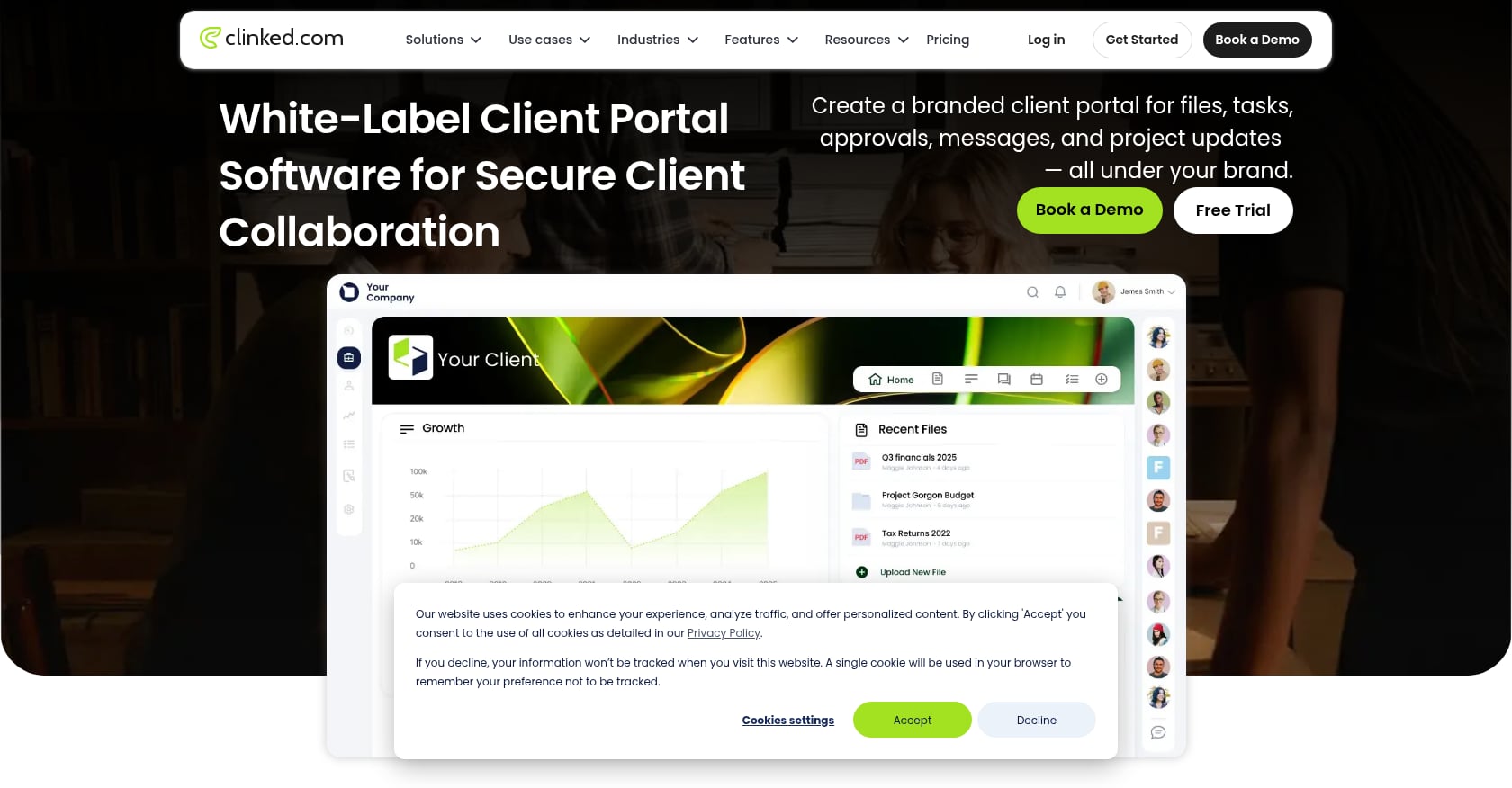
Best for: Legal, finance, accounting, and consulting teams needing secure file sharing, client workspaces, task collaboration, and audit-style activity tracking.
Example workflow: A client accesses a secure, white-labeled workspace to upload signed documents, view task deadlines, and collaborate with their advisor. All file activity is logged for compliance.
Pricing: G2 lists Clinked Standard at $194/month (100 registered users plus unlimited guests), Premium at $389/month, and VDR at $465/month.
Key features:
- Secure client portal with white-label branding
- File sharing and document management with audit trails
- Task and project collaboration
- Customizable dashboards and URLs
- Mobile app
- Integrations: Adobe Acrobat Sign, DocuSign, Google Workspace, Zapier
What users say: G2 shows Clinked at 4.8/5 from 140+ reviews. Users highlight the clean interface and secure collaboration. Recurring concerns include limited reporting, integration depth, and occasional performance issues.
Tradeoffs:
- Better as a document-collaboration portal than a full implementation system.
- Reporting and advanced workflow analytics are limited.
- Price point is higher than lightweight alternatives.
Choose it if security, file sharing, and professional presentation matter more than onboarding analytics. Skip it if you need SaaS implementation workflows with dependencies, phase gates, and risk scoring.
8. Softr
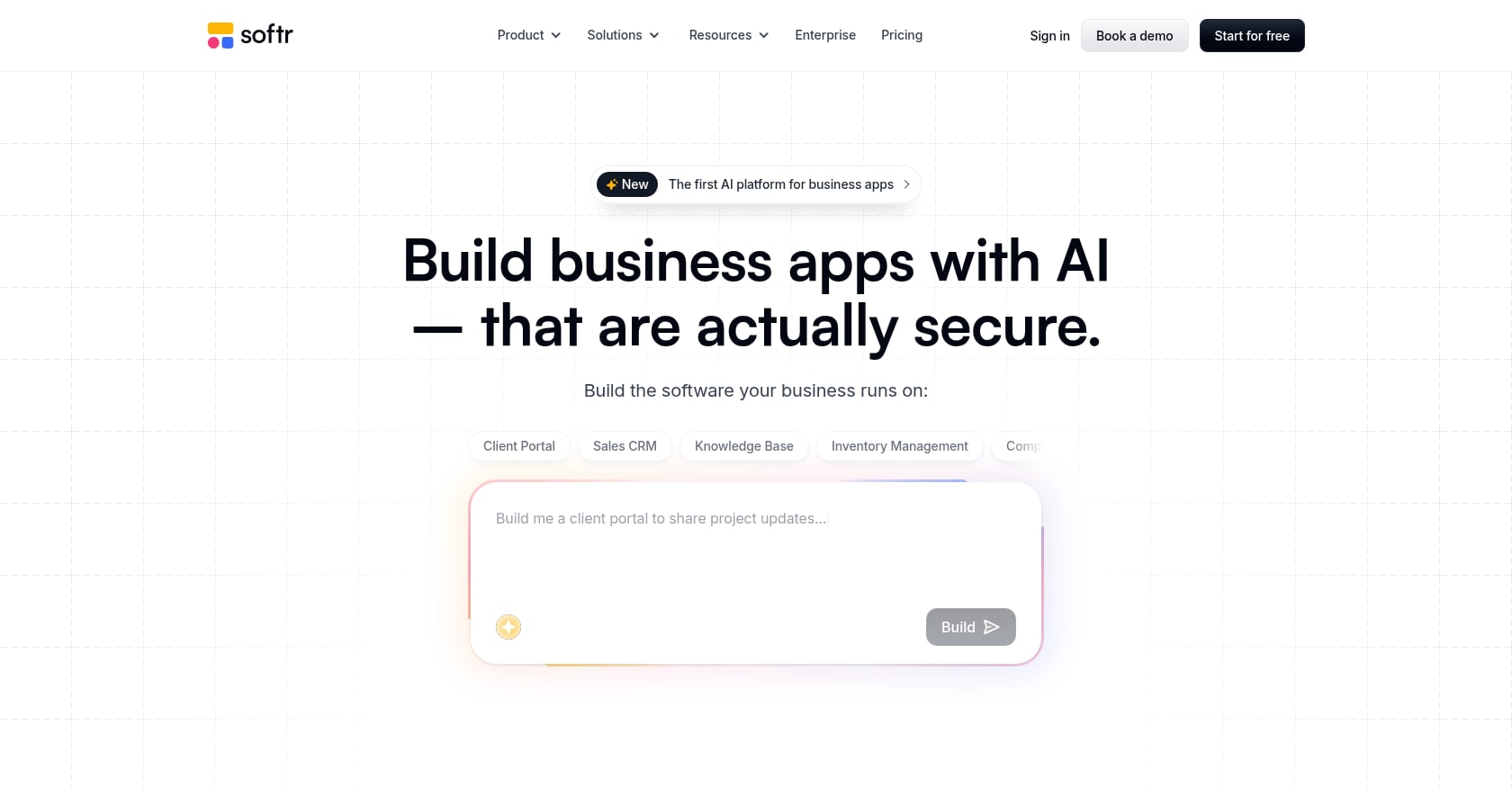
Best for: Teams that manage client data in Airtable, Google Sheets, Notion, HubSpot, or SQL and need a polished portal layer without writing code.
Example workflow: An agency connects Airtable to Softr, creates a branded client portal in hours, and gives each client a login to view project status, download reports, and submit requests, all pulled live from existing data.
Pricing: G2 lists Softr with Free, Basic at $49/month, Professional at $139/month, Business at $269/month, and Enterprise at custom pricing. Reviewers flag meaningful pricing jumps between tiers.
Key features:
- No-code portal builder
- Connects to Airtable, Sheets, Notion, HubSpot, SQL, and more
- User authentication and groups
- Kanban, list, and detail views
- Payments and custom code on paid plans
- SSO as a paid add-on on Business tier
What users say: G2 shows Softr at 4.7/5 from 704 reviews. Users praise the ability to skip custom development. One commenter on r/SaaS said Softr worked well for a custom branded portal when their team needed flexibility beyond off-the-shelf tools.
Tradeoffs:
- Softr is a portal builder, not a complete onboarding or billing system.
- The underlying data model matters: messy Airtable data creates a messy portal.
- User limits and tier jumps become expensive as client count grows.
Choose it if the portal should reflect your existing data rather than force your team into a new operating system. Skip it if you need built-in onboarding workflows, e-signatures, or engagement tracking.
9. HoneyBook
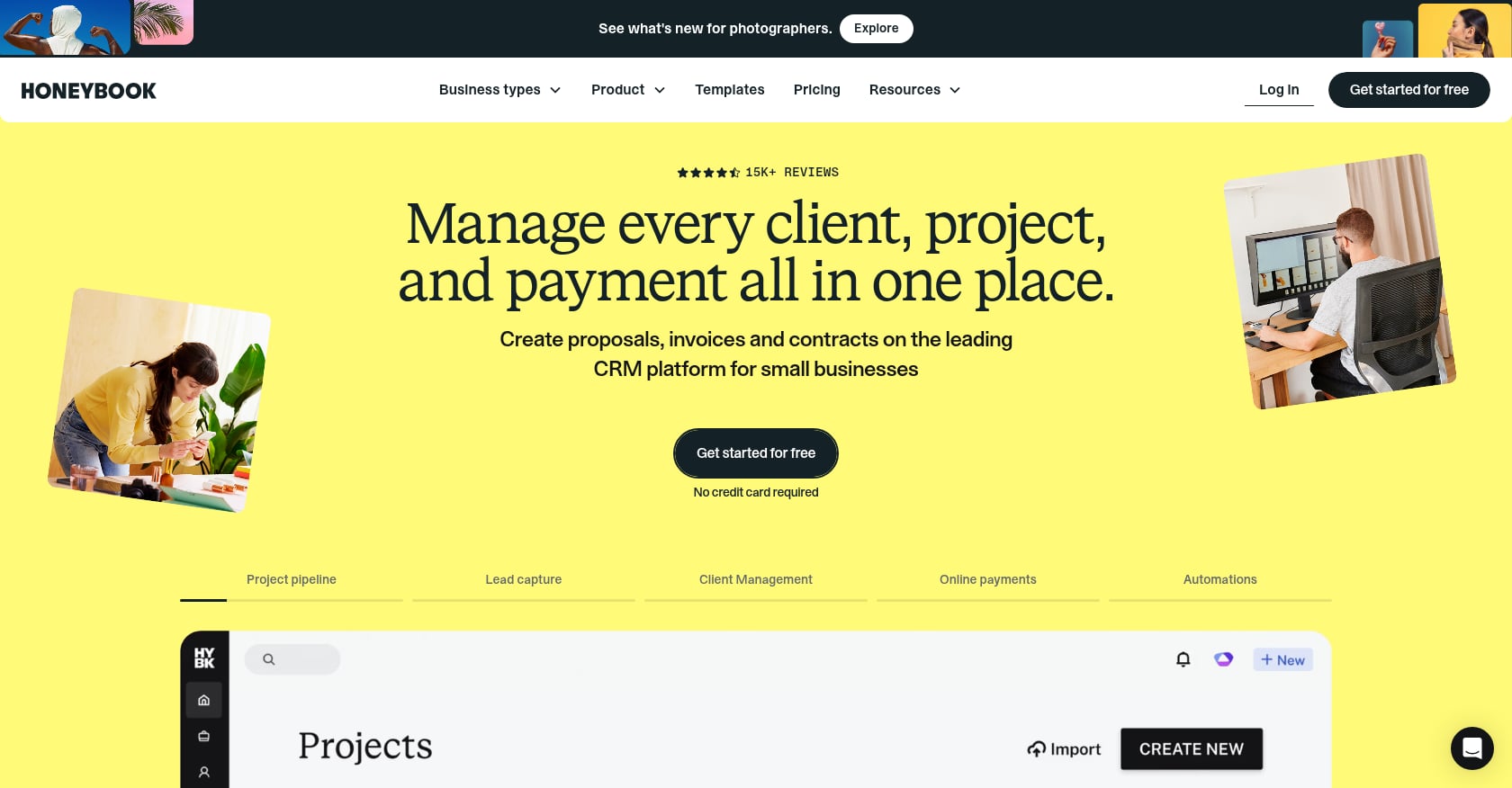
Best for: Photographers, designers, event planners, coaches, and independent service businesses that need proposals, contracts, invoices, scheduling, and payments in one client portal.
Example workflow: A prospective client receives a branded proposal, signs a contract, pays a deposit, books a session, and accesses project details through a single HoneyBook portal.
Pricing: Starter at $36/month, Essentials at $59/month, and Premium at $129/month. Card processing fees start at 2.7% + 10¢, ACH at 1.5%.
Key features:
- Branded client portal
- Proposals, contracts with e-signatures, and online invoices
- Scheduling and automated follow-up
- Payment processing
- CRM and pipeline management
- Automated workflows
What users say: G2 shows HoneyBook at 4.4/5 from 193 reviews. Users praise the centralized client experience. However, a r/weddingplanning thread shows the client-side frustration clearly: one user complained about managing seven HoneyBook portals across different vendors instead of just using email.
Tradeoffs:
- Excellent for proposal-to-payment workflows, not built for complex B2B implementation projects.
- Payment processing fees add up.
- Portal fatigue can hurt the client experience when buyers manage multiple vendor portals.
- Reddit threads show freelancer sensitivity to recent price increases.
Choose it if you are a creative professional who needs a simple client portal for booking, billing, and communication. Skip it if you run multi-phase B2B onboarding with dependencies and risk tracking.
10. Moxo
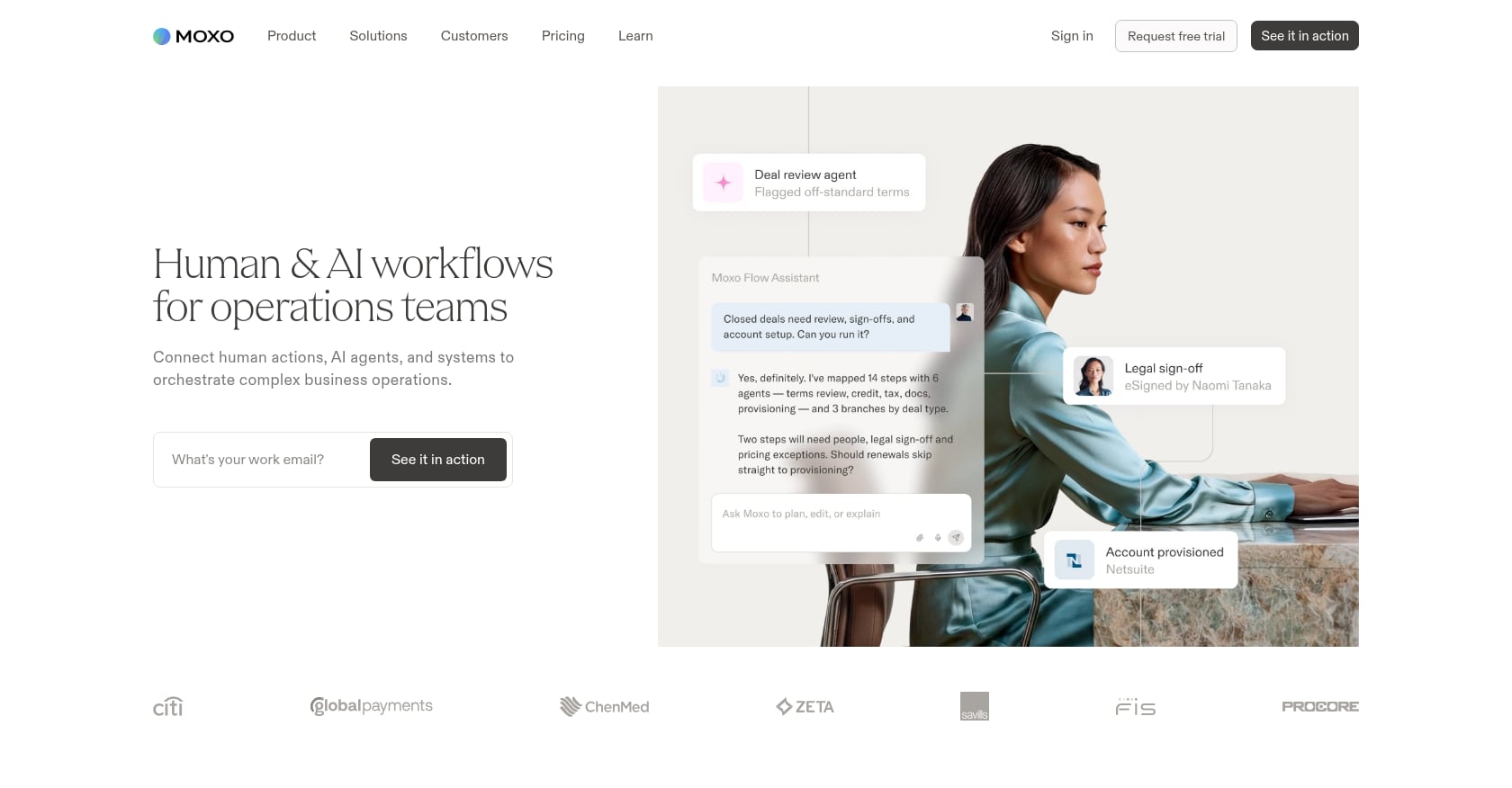
Best for: Regulated industries (financial services, legal, accounting, healthcare) running repeatable, multi-party workflows that need secure messaging, approvals, e-signatures, and audit trails.
Example workflow: An accounting firm creates a structured workflow for tax preparation. The client receives file requests, uploads documents, approves review drafts, and signs final filings through a branded portal. Every action is logged with timestamps for compliance.
Pricing: Pricing varies by source. Zite lists a free plan (2 flows, 500 AI credits), Business at $99/month, Pro at $499/month, and Enterprise custom. Moxo often quotes by use case and recommends a demo for aligned pricing.
Key features:
- Workflow templates with conditional logic
- Approvals, file requests, and e-signatures
- Secure messaging with Magic Link access
- AI coordination agents
- Forms and audit trails
- SAML SSO, dashboards, API/SDK access on higher tiers
What users say: G2 shows Moxo at 4.5/5 from 194 reviews, with a 2-month average implementation time. Some users note that clients still revert to text and email when adoption is not enforced.
Tradeoffs:
- More than a portal; it is full workflow orchestration, which may be overkill for simple needs.
- Pricing is less transparent than lightweight tools.
- Adoption still depends on moving clients away from email into the structured workflow.
Choose it if the portal is not just a place to view information but the interface for a repeatable regulated process. Skip it if you only need a project dashboard or file-sharing space.
Why Client Portals Fail
Most client portal examples look great in a demo. The problems start after launch. Here are the most common failure patterns, drawn from practitioner discussions and onboarding research.
The portal is introduced too late. A LinkedIn practitioner working with accounting firms argues that portal adoption starts before the client ever logs in, with clear onboarding language and templated document requests set during the sales process. If the portal is an afterthought introduced mid-project, clients already have email habits that are hard to break.
Clients do not know what to do next. A portal full of files, messages, and widgets without a clear next action is worse than email. The best client portal examples show a single next step with an owner, a due date, and a “waiting on you” indicator. Learn how to stop clients going silent after kickoff by designing portals around action clarity.
The portal duplicates email instead of replacing it. If the internal team still accepts scope changes, approvals, and file submissions over email, the portal becomes optional. OnRamp recommends making the portal the default rather than the fallback, and measuring adoption from day one.
It exposes internal complexity. Clients should never see internal risk flags, back-end project notes, or resource allocation details. When they do, the portal feels overwhelming and confusing.
No one measures adoption. OnRamp names adoption rate, task completion rate, time-to-activation, and support-ticket volume as success metrics worth tracking. If no one is watching whether clients log in and complete tasks, the portal quietly dies.
Research from a LinkedIn retrospective by Dextra Labs reinforces a related point: AI works best in portals for coordination tasks with clear success criteria, like sending reminders, chasing signatures, and flagging missing information. It is not a chatbot gimmick. It is the difference between a portal that nudges clients forward and one that waits passively.
Client Portal Rollout Checklist
Buying a portal is the easy part. Getting clients to use it is the hard part. Here is a practical rollout checklist based on what works.
-
Map the client journey first. Before configuring anything, document the steps from kickoff to completion. What does the client need to do, in what order, with what dependencies?
-
Define the first action after login. The first thing a client sees should be a specific task, not a welcome dashboard. If there is nothing to do, there is no reason to return.
-
Set expectations during sales or kickoff. Tell clients the portal is where work happens. Not email. Not Slack. The portal. Starting your rollout with a branded portal guide and checklist can help standardize this step.
-
Use templates and playbooks. Do not build every project from scratch. Launch with reusable onboarding playbook templates that include tasks, milestones, and dependencies tailored to each service line.
-
Hide internal complexity. Show the client only what they need: their tasks, their progress, their approvals. Keep risk scores, resource plans, and internal notes behind the scenes.
-
Make portal actions work from email. Magic links, actionable email notifications, and login-less secure links dramatically reduce friction. Tools like GUIDEcx and Rocketlane both highlight this pattern because it works.
-
Add automated reminders. Overdue tasks should trigger automatic nudges to the client and alerts to the internal team. Manual chasing does not scale.
-
Track portal adoption weekly. Measure login rates, task completion rates, and time-to-value. Treat a client who has not logged in within 48 hours of kickoff as a risk signal.
-
Set “client at risk” triggers. No login after kickoff. Overdue approval. Missing documents. Budget burn ahead of progress. These are signals, and the portal should surface them automatically.
-
Review portal analytics monthly. Look for patterns: which tasks stall, which phases slow down, which clients disengage. Use the data to improve the process, not just the tool.
Contact GoLiveFlow if you want to see how guided onboarding, engagement scoring, and AI risk detection work together in a single implementation portal.
FAQ
What is a client portal example?
A client portal example is a real tool or workflow pattern that shows how businesses give clients a secure, branded space to complete tasks, track progress, and communicate. This article covers 10 client portal examples across SaaS onboarding, agency work, support, documents, and custom portals.
What should a client portal include?
At minimum: clear next actions, task ownership with due dates, file sharing tied to specific work items, approval or signature workflows, progress visibility, and automated reminders. Advanced portals add engagement scoring, risk detection, and time-to-value analytics.
What is the difference between a client portal and a customer portal?
The terms are often interchangeable. “Client portal” tends to appear in professional services, agency, and B2B implementation contexts. “Customer portal” is more common in SaaS support, self-service, and CRM contexts. The functional needs are similar: give external users a secure place to take action and see progress.
What is the best client portal for SaaS onboarding?
GoLiveFlow is built specifically for SaaS implementation teams that need guided onboarding, engagement scoring, AI risk detection, e-signature approvals, and portfolio time-to-value analytics. Other strong options include GUIDEcx for enterprise onboarding and Rocketlane for teams wanting PSA features alongside the portal.
How much does client portal software cost?
Prices range from free (Softr, Dock free tiers) to over $1,000/month (Dock Premium, Moxo Pro). GoLiveFlow starts at $19/seat/month with unlimited client contacts. Watch for hidden costs like per-seat client fees, gated white-labeling, add-on AI pricing, and mandatory implementation packages.
Do clients actually use portals?
Some do. Many do not. Practitioners on r/SaaS report that “95% of the time” clients skip portal logins when the tool does not beat email on action clarity. The key is reducing access friction (magic links, actionable emails), showing a clear next step, and making the portal the only place where approvals and deliverables happen.
Is a client portal different from project management software?
Yes. A project management tool is built for internal teams. A client portal is built for the client’s experience: simpler, cleaner, and focused on what they need to do. Showing a client the same Gantt chart your PM uses creates confusion, not transparency.
Can I build a client portal without code?
Yes. Softr lets you build portals on top of Airtable, Google Sheets, HubSpot, and other data sources without writing code. The tradeoff is that you are building a portal layer, not a complete onboarding or implementation system. For teams needing guided workflows, automation, and risk detection out of the box, purpose-built tools are a better fit.